
Members
How to book a lawn
Members reserve lawn time through the club's online booking system. Here's the whole process, screen by screen — it takes about a minute once you've done it once.
Before you start
You'll need the username and password the club emailed you. If you don't have them, or they aren't working, contact John Miles through the club email.
The button above takes you straight to our lawns. You can also go to croquetbooking.com and choose North Toronto Croquet Club from the list of clubs.
Sign in
Enter your username and password, then click Log in.
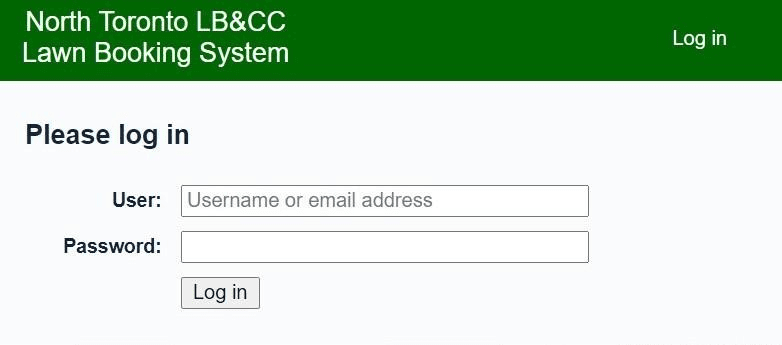
The log-in screen. To change your password to something more memorable, click Usersonce you're in, then your own name.
Open the booking screen
After signing in you'll see the green toolbar. Click Go toto bring up the day's bookings — sometimes you'll land there already.

The toolbar sits at the top of every screen. Help has more detail on everything the system can do. Read the day view
Each column is a lawn, and each coloured block is a booking. The number beside a lawn name — North Lawn (2) — is how many games that lawn can take at once.
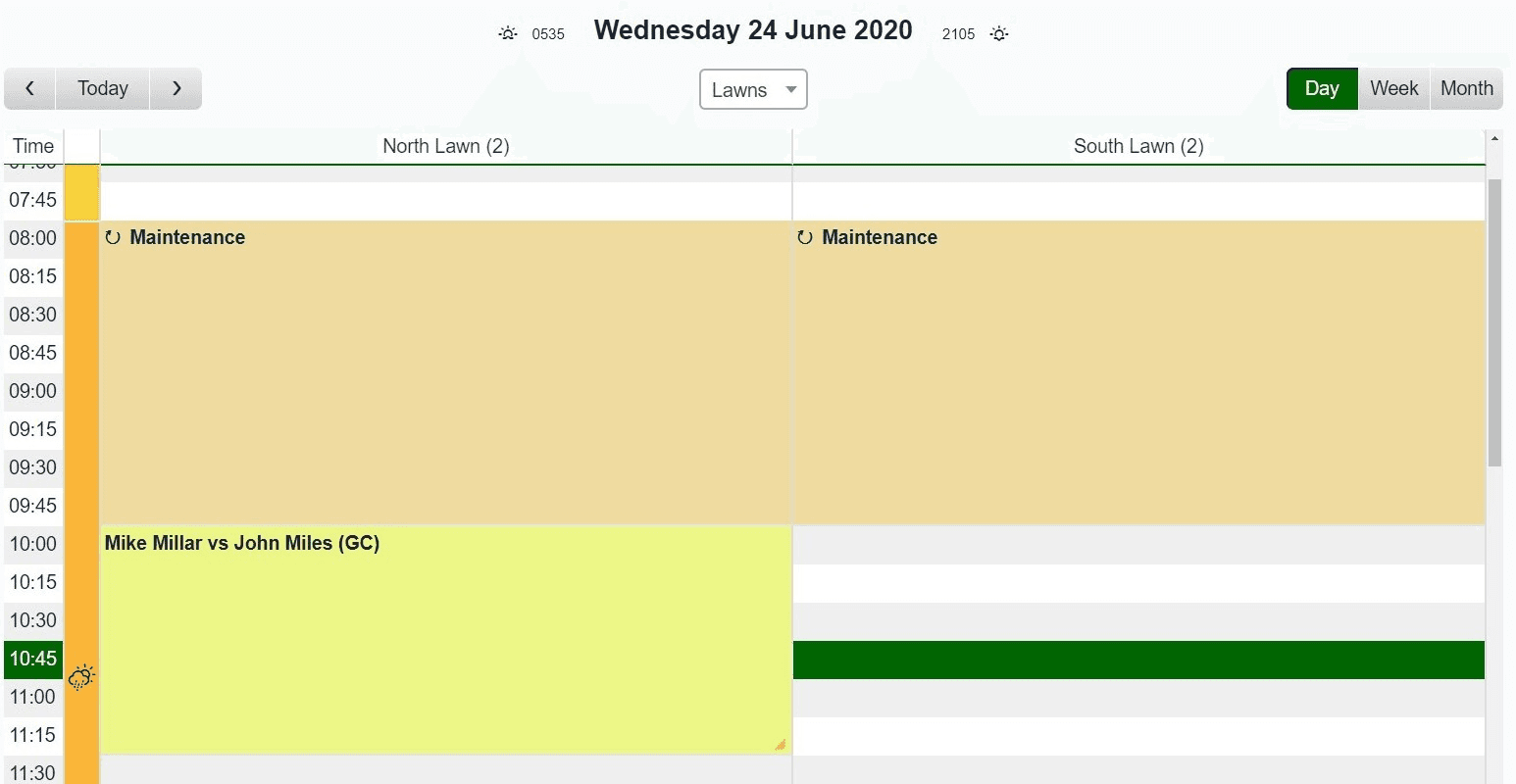
A day's bookings. Maintenance is blocked out first thing; a golf croquet game runs on the North Lawn from 10:00. - Change day with the arrows either side of Today, or click the date at the top and pick from the calendar.
- Day, Week and Month at the top right switch how much you see at once.
- The coloured bar down the left is the weather forecast. The green horizontal line is the current time — it only appears when you're looking at today.
What the colours mean
- Maintenance
- USCA
- Golf Croquet
- Association Croquet
- Coaching
- Private Event
- Tournament
The same key appears along the foot of the booking screen.
Make your booking
Click an empty slot at the time you want to start. The Add Entry screen opens with that time already filled in.
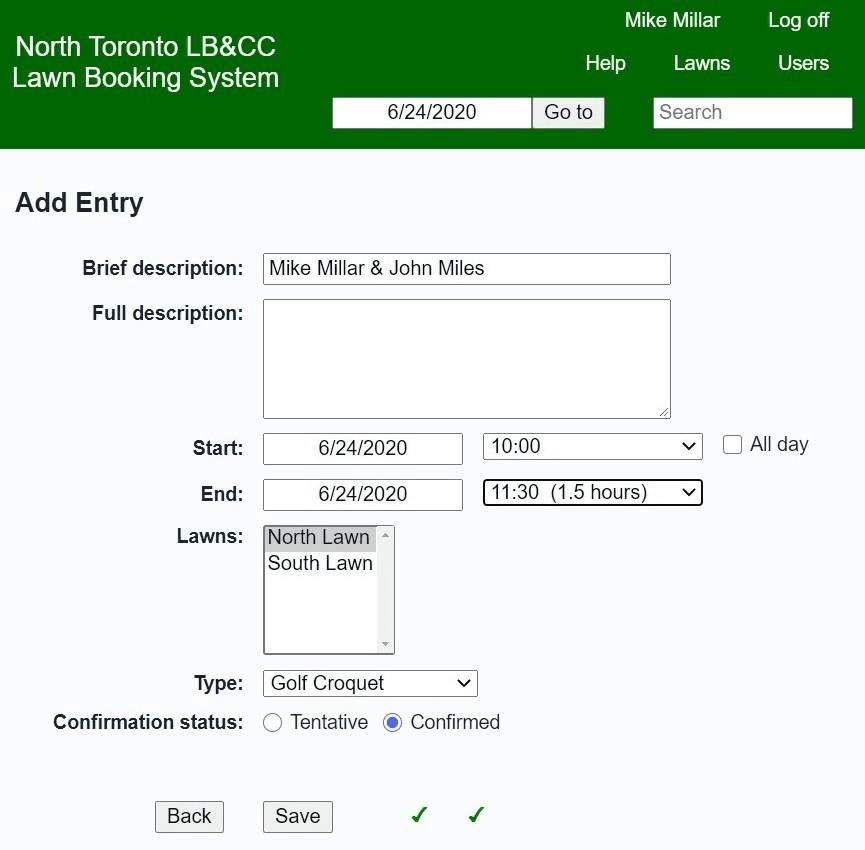
Booking a golf croquet game on the North Lawn, 10:00 to 11:30. - Put the full names of everyone playing in Brief description. Anything else you want to say goes in Full description.
- Adjust the start time, end time and lawn if you need to, and set Typeto the kind of game you're playing.
- The small tick or cross beside the buttons tells you whether the booking will be accepted. Hover over it for the reason.
Click Saveand you'll normally get a confirmation.
Change or cancel a booking
Find your booking on the day view and click it. A short screen appears with Edit Entry and Delete Entry. Editing takes you back to the form above.
If your plans change, please cancel — it frees the lawn for someone else and saves them a wasted trip.
The booking rules
Three hours maximum
A single booking can run up to three hours.
Two weeks ahead
You can book up to two weeks in advance, no further.
Full names, always
Every booking must list the full names of all the players involved.
Occasionally there are limits on how much one member can book, so that everyone gets a fair share of the lawns. If you get an error on a booking you think you should be able to make, let John Miles know.
Still stuck?
The Help button at the top of every booking screen covers the rest of the system. For anything else — including log-in trouble — contact John Miles.
hello@northtorontocroquet.ca →Not a member yet?
Lawn booking comes with full membership. Have a look at what's included and how to join.
Membership →Adapted, with thanks, from a guide by the Nottingham Croquet Club.